Step-1 Let the screens connect to the Internet
The screens in the shop, you can let the screens connect to the shop’s wifi
1) Power in the LED screen
2) Connect the T3 card’s wifi which is “APxxxxx” by your phone, open “Viplex Handy” app. (Refer to the separate document for detailed connection steps)
3) Click the device which has connected with your phone
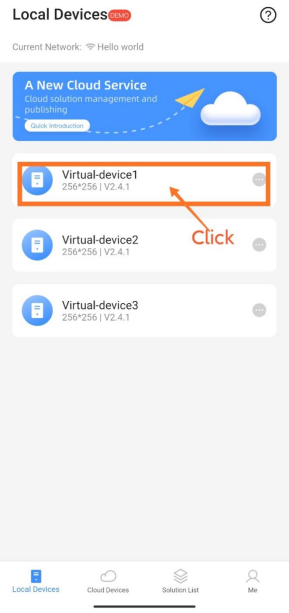
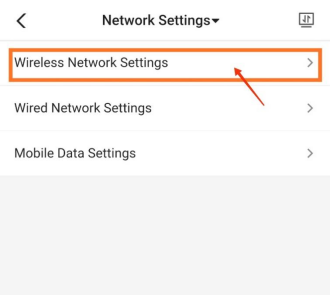
4) Choose “Network Setting”
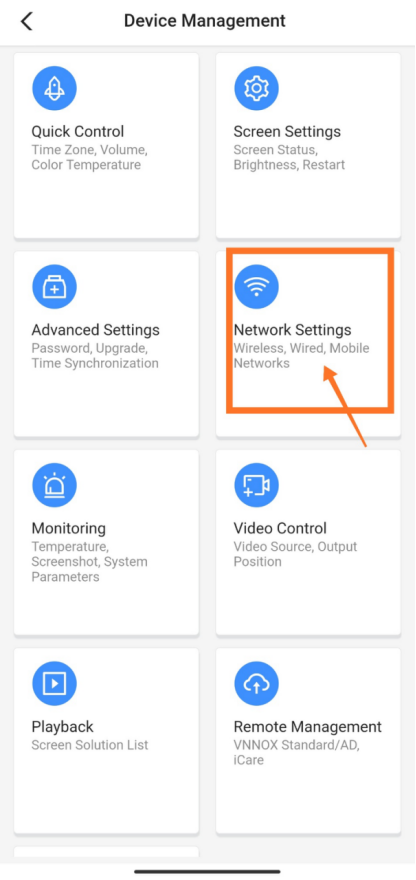
5) Choose “Wireless Network Setting”
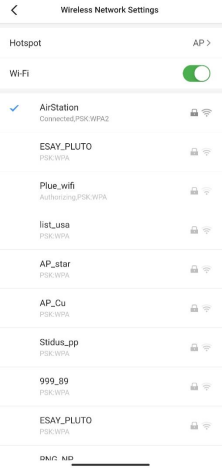
6) Choose your shop’s wifi and connect it.
The screens in the bus stops, you can use 4G card to let them connect with Internet.
1) Buy 4G cards from your local telecom carrier. One 4G card for one T3 card.
2) Insert the 4G card into the phone card slot and activate it.
3) Insert the activated 4G card into the slot of the T3 card. (At the bottom of the back of the T3 card)
Step-2
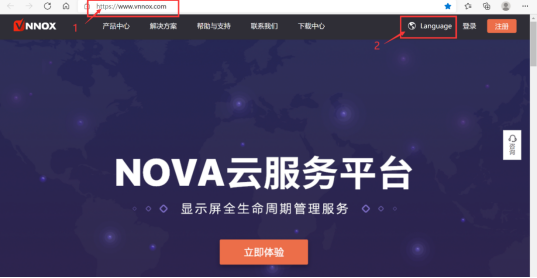
Open www.vnnox.com website
Choose language, select “English”
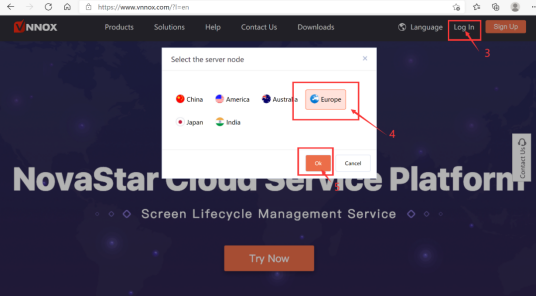
Login in your account
Account number: VDN
Account password: france123. (Please notice that “.” is also the part of password.)
Step-3
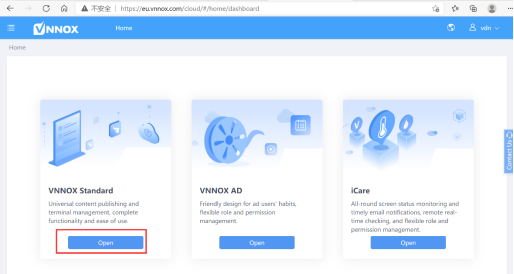
Choose “VNNOX Standard”
Step-4
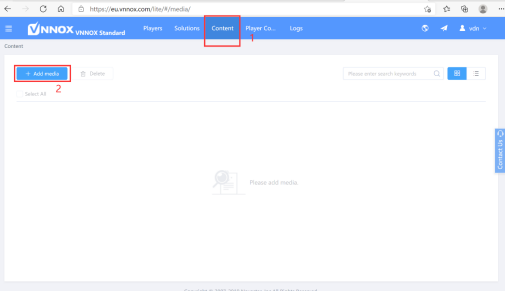
Upload the images and videos which you need to display on the screens to the “Contents” from your phone first
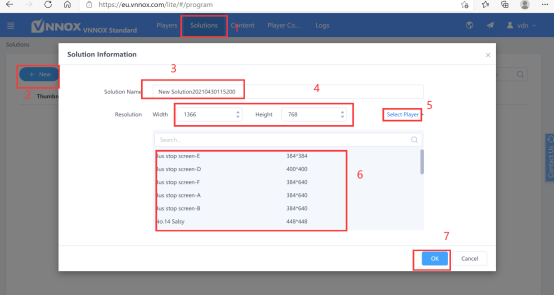
Step-5 Make program list solutions.
Please do the steps as the photo shows as below.
Method of calculating resolution of screen:
Width: The width of screen(mm) / 3mm (Pitch of the screen)
Height: The height of screen(mm) / 3mm (Pitch of the screen)
For example, one 1.92x1.344m screen, the resolution is:
Width: 1920mm / 3mm = 640
Height: 1344mm / 3mm = 448
So resolution is 640x448.
If you have any questions, you can click “Contacts” on the left of the page, contact us freely.